Scale screen
SWELT LINE · PRODUCT UI · WORK IN PROGRESS · 23 NOVEMBER 2026
The colour display on the Swelt Line scale, redesigned to look and read like the Swelt app. It has the same near-black background, light numerals, the colour each reading has in the app, and the profile colours. 51 screens cover every state, from stepping on to firmware updates.
WORK IN PROGRESS
This is a design in progress, not the shipping firmware. Screens, wording and behaviour can still change. Every reading shown is a sample value, not a measurement.
51
screens
6
flows
272 × 480
colour display
3
keys: ‹ SET ›
One language with the app
00 · SYSTEM
The scale takes its colours, type and icons from the Swelt app. A reading looks the same on the scale and on the phone.
Ground and type
The app's near-black background, which is simply the display's pixels switched off. Large numerals set like the app: the brand mono, tracked tight, with the unit muted on the baseline. Labels are all-caps mono.
Colour marks what, not how good
Each reading keeps the colour it has in the app. The range bar is monochrome, so colour never judges a value.
An athlete shows the move
Step on and grip show a Swelt cast athlete doing it, barefoot on the same black. When contact is lost, the electrode map shows which of the four pairs, as a shape and a colour.
Profiles as colours
A profile is its number in a disc of its colour, as in the app. The name is added in the app.
Orbs and lit icons
Each result opens on its orb from the Swelt imagery: molecules for heart rate, fibre for muscle, ivory for bone, droplets for water. Icons come from the app's symbol font and sit in the same lit glass, white when steady and coral on a fault.
Three keys, always labelled
The key legend at the bottom of every screen says what ‹ › and SET do there.
Wake and weigh
01 · 10 SCREENS
Step on, the weight settles and locks, then the handle is lifted and the eight electrodes read body composition. A Swelt athlete shows each move. When contact is lost, the electrode map shows which pair, as a shape and a colour.
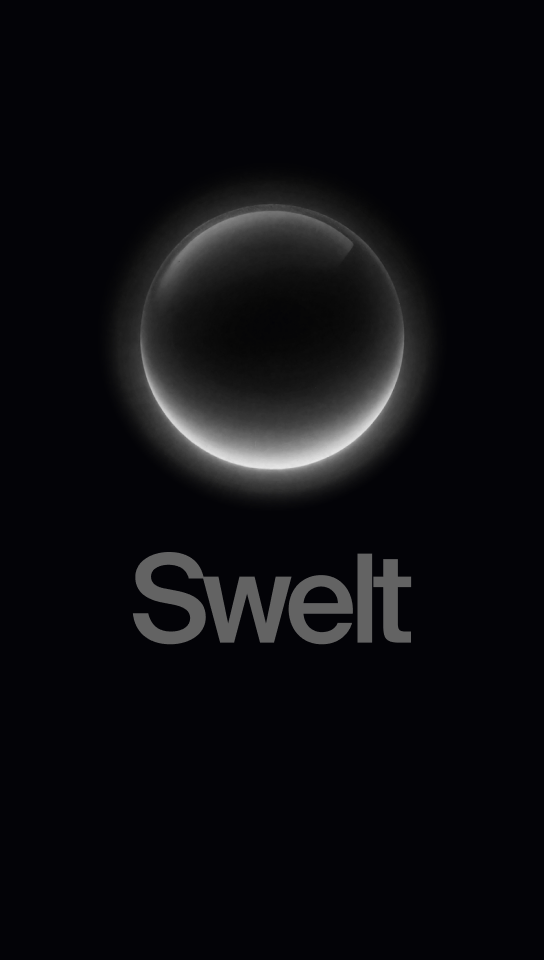
1.1 · WAKE
Step on or power on. The wordmark fades in, then weighing starts.
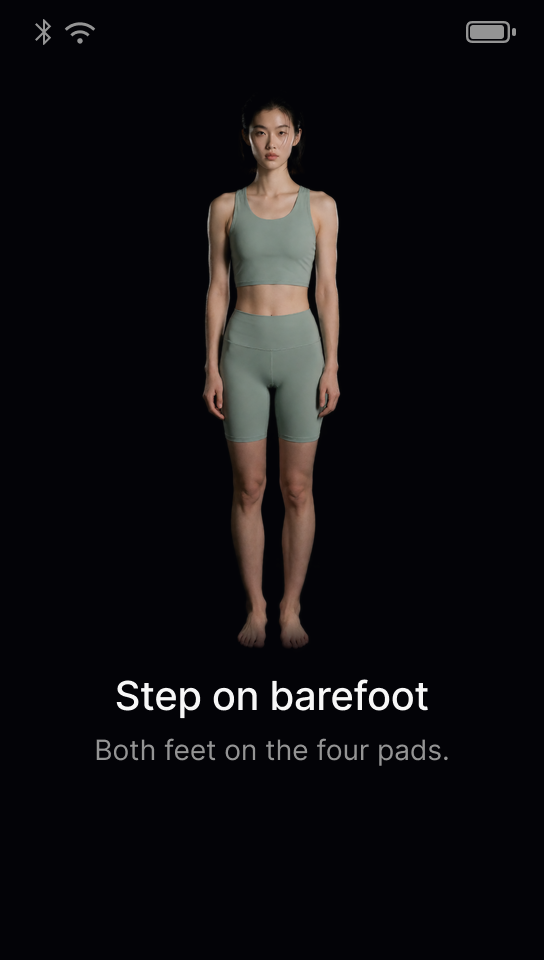
1.2 · STEP ON
No load yet. The athlete shows the stance: barefoot, feet on the four pads.
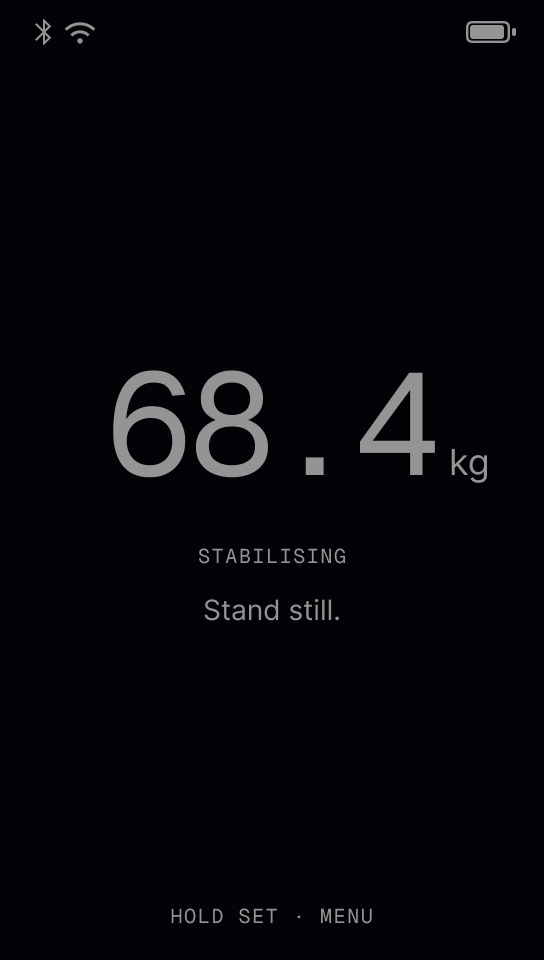
1.3 · STABILISING
Weight settling. The digits stay muted until they are stable.
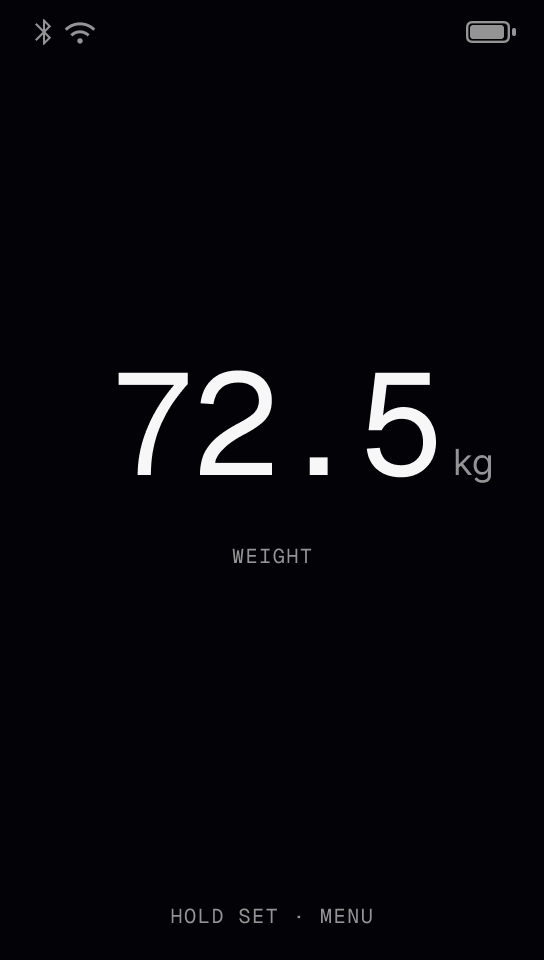
1.4 · WEIGHT
Stable. The weight locks, then the profile or the grip.
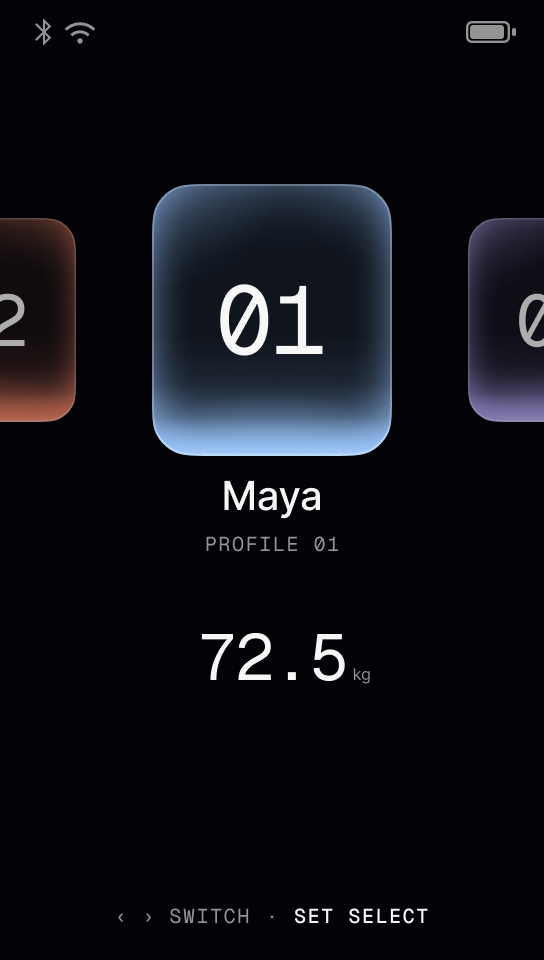
1.5 · WHOSE READING
Choose whose reading it is. ‹ › choose, SET confirms.
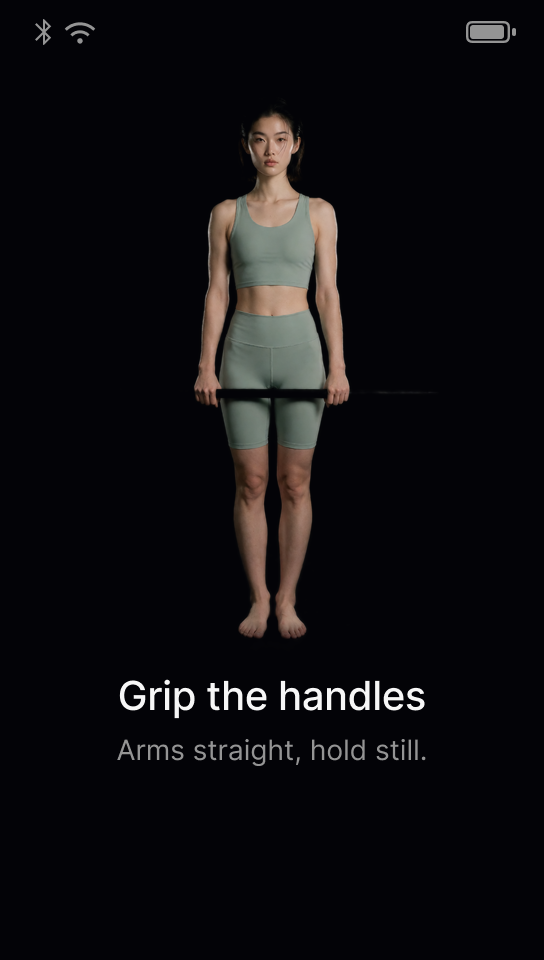
1.6 · GRIP
Weight locked. Lift the handle within 10 s, otherwise weight only.
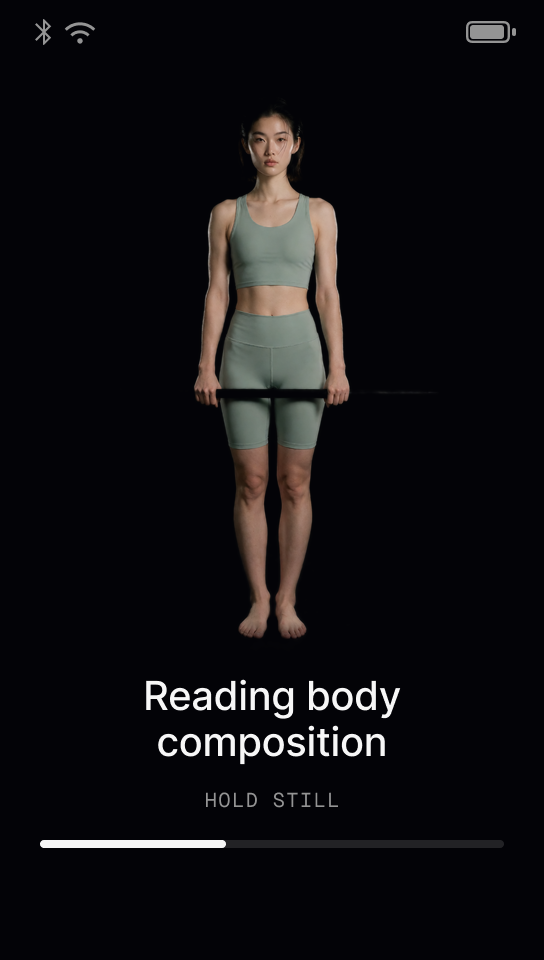
1.7 · READING
All eight electrodes in contact. The scan runs.
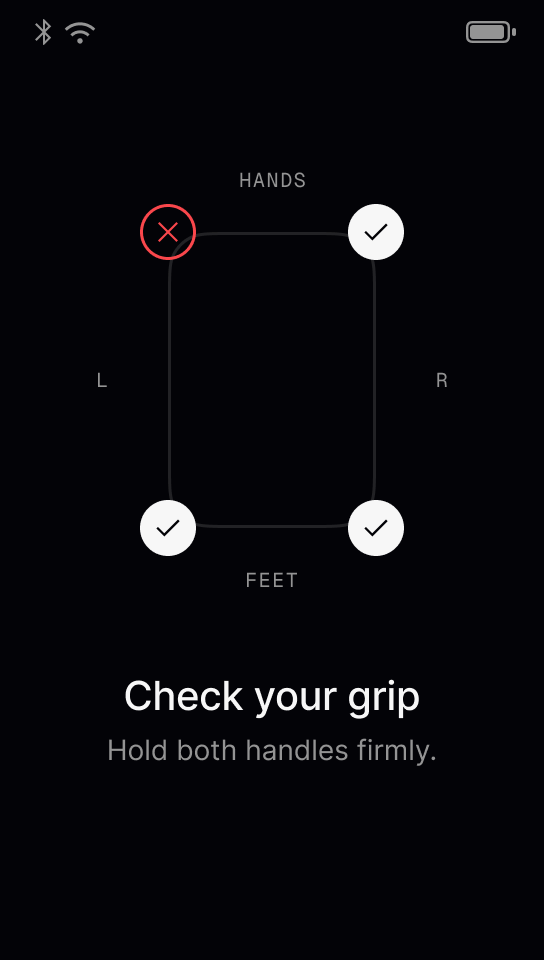
1.8 · CHECK GRIP
Hand contact lost. A re-grip restarts the scan; after 20 s, weight only.
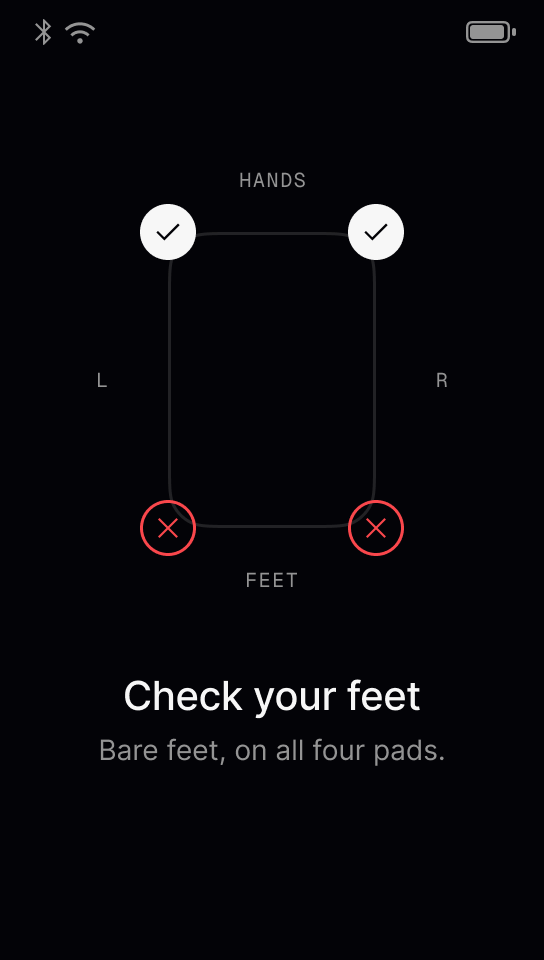
1.9 · CHECK FEET
Foot contact lost. Same rule as the grip.
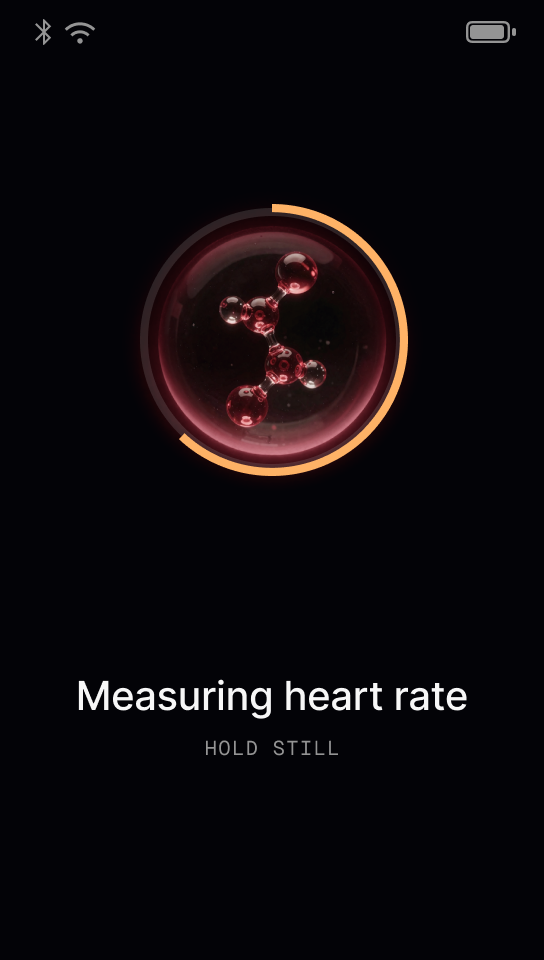
1.10 · HEART RATE
After the scan. Hold still until the ring closes.
Results
02 · 11 SCREENS
One card per reading, stepped through with ‹ ›. Each card opens on its orb and is badged in the same colour the app gives that reading. The colour says what the reading is, never whether it is good.
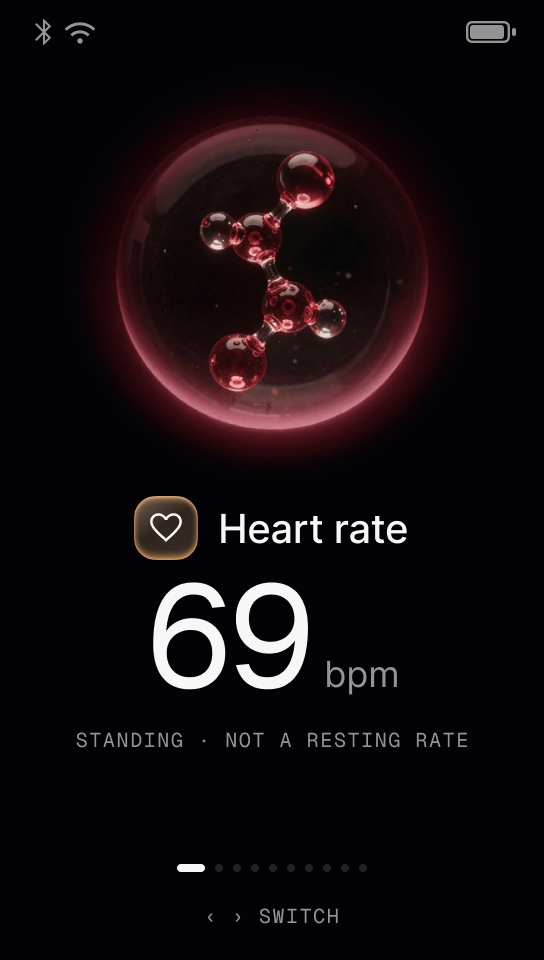
2.1 · HEART RATE
First card after the scan. Standing, so not a resting rate.
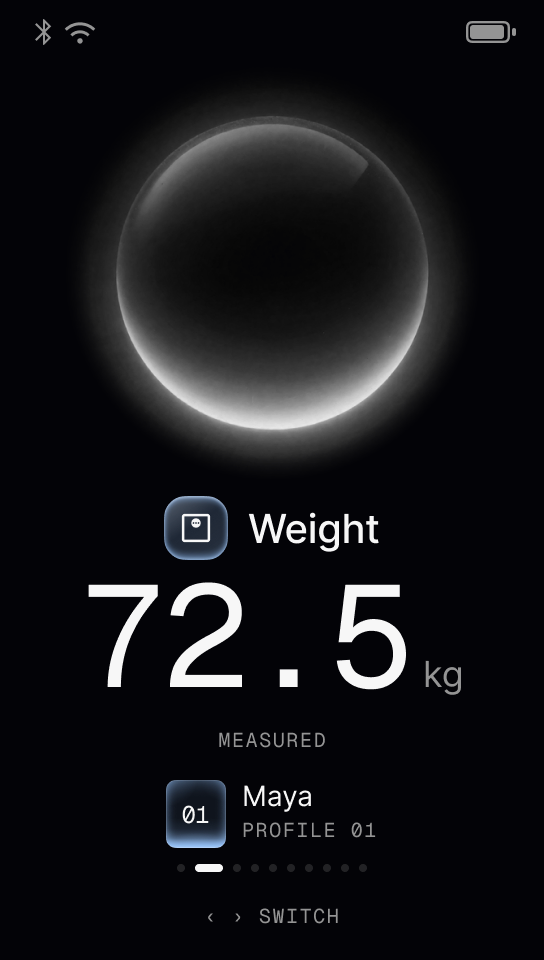
2.2 · WEIGHT
Measured, with the profile it was saved to.
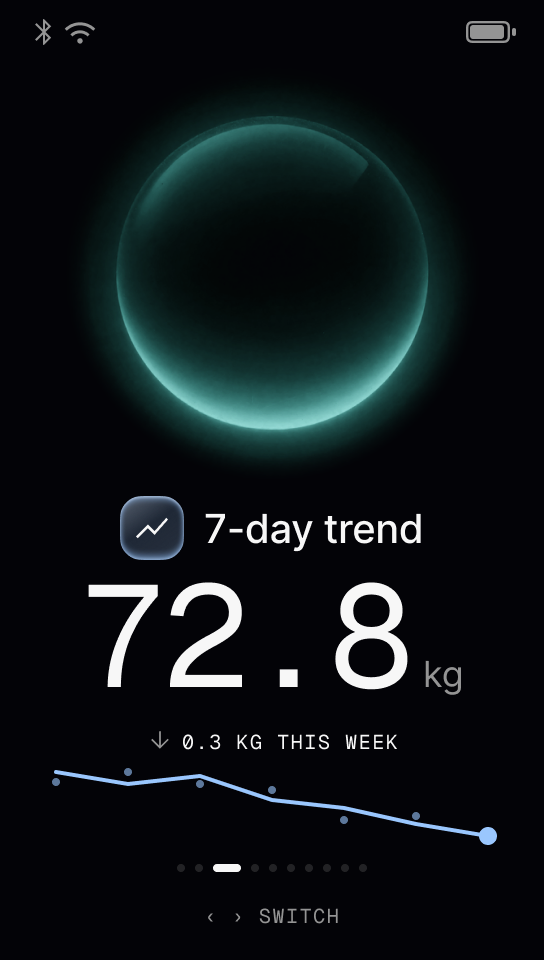
2.3 · 7-DAY TREND
The 7-day line through the readings, as in the app.
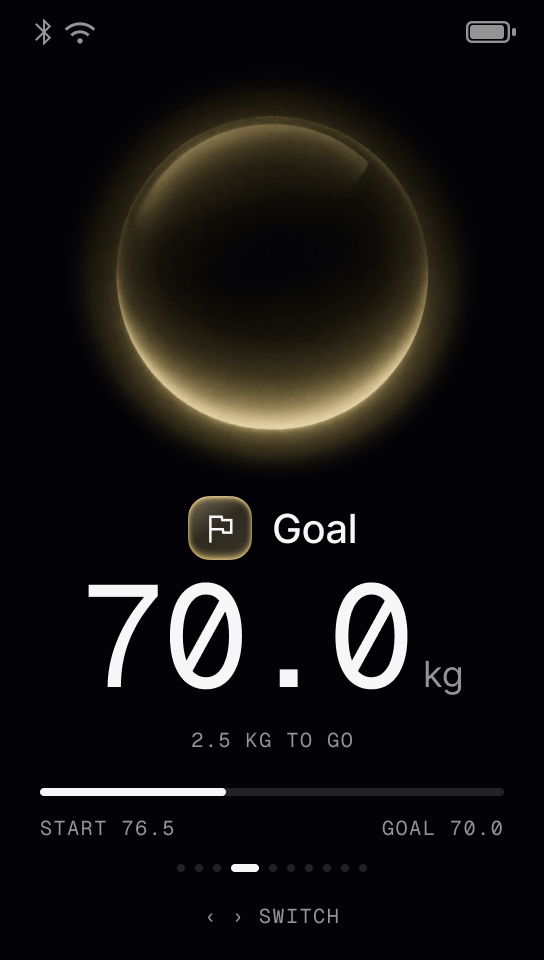
2.4 · GOAL
Distance to the goal set in the app.
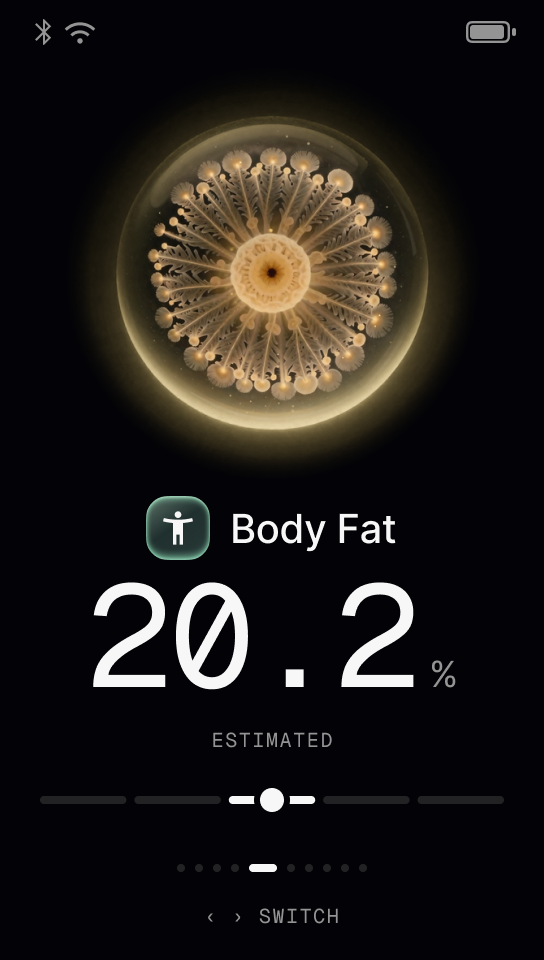
2.5 · BODY FAT
Estimated. Five-band bar.
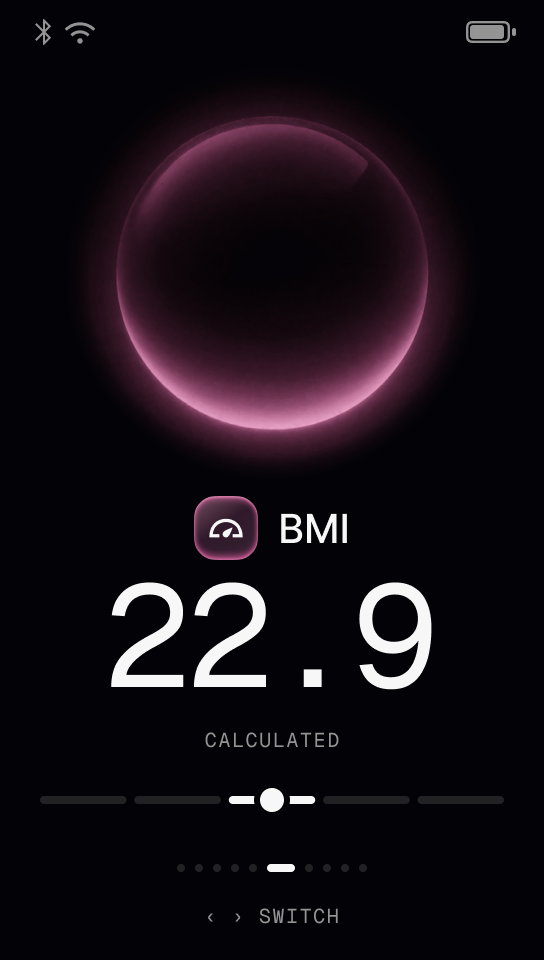
2.6 · BMI
Calculated. Five-band bar.
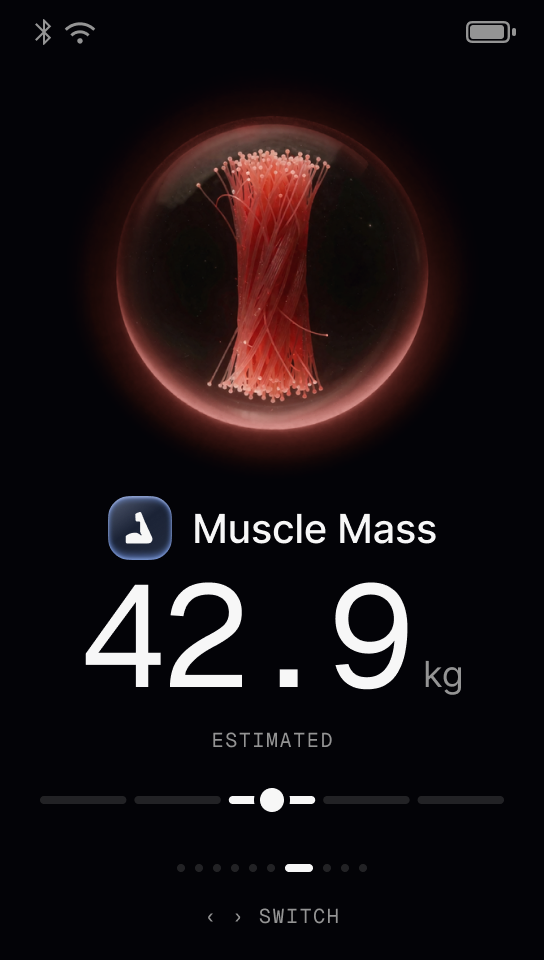
2.7 · MUSCLE MASS
Estimated. Five-band bar.
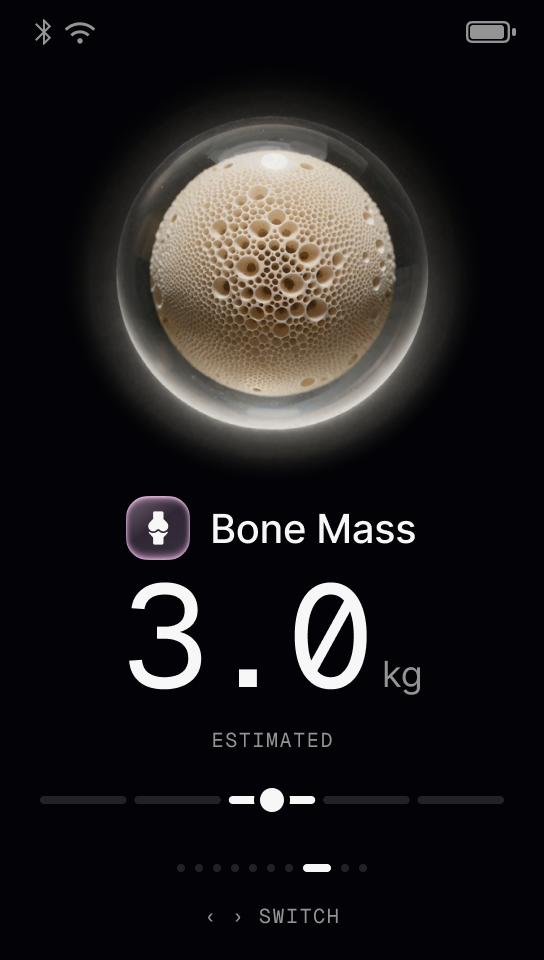
2.8 · BONE MASS
Estimated. Five-band bar.
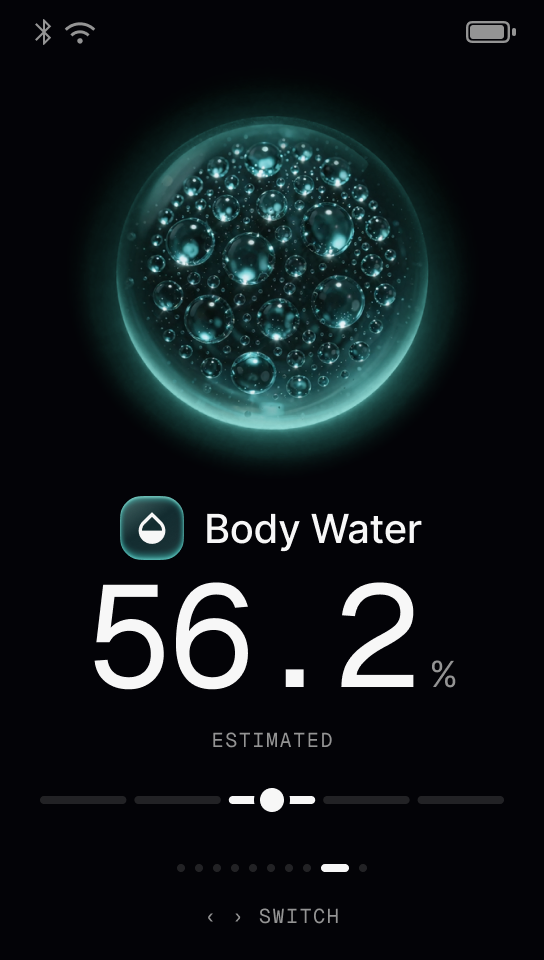
2.9 · BODY WATER
Estimated. Five-band bar.
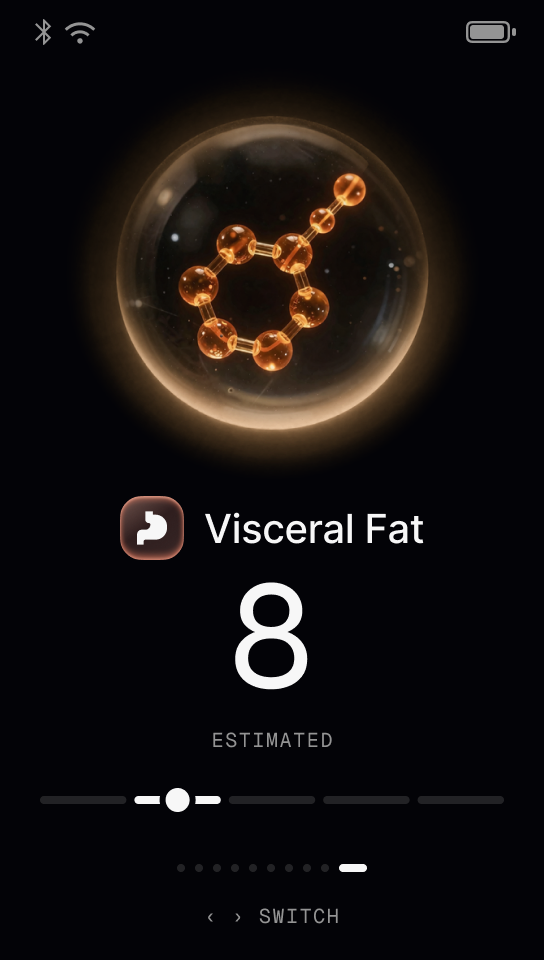
2.10 · VISCERAL FAT
Estimated. Five-band bar.
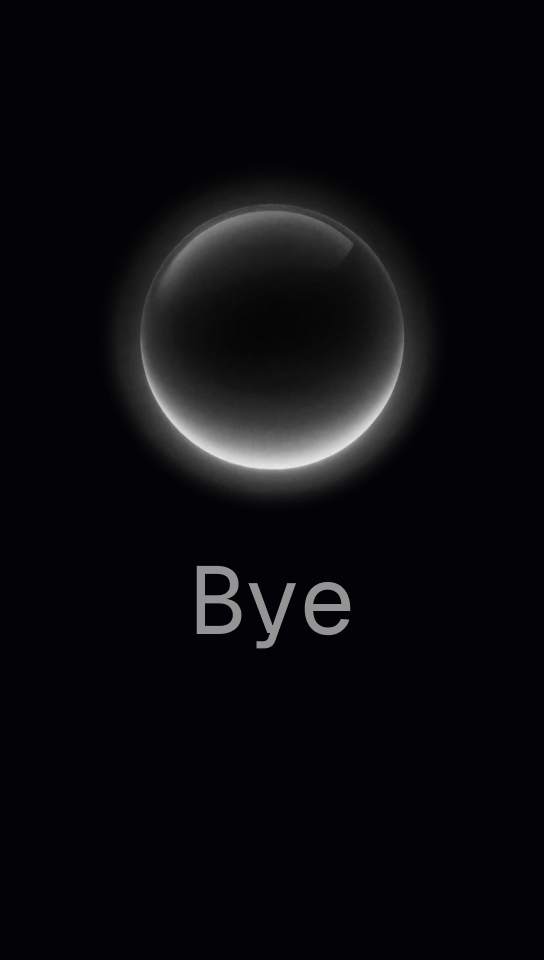
2.11 · BYE
After the results, the scale sleeps.
Modes
03 · 2 SCREENS
Two ways the scale reads only weight.
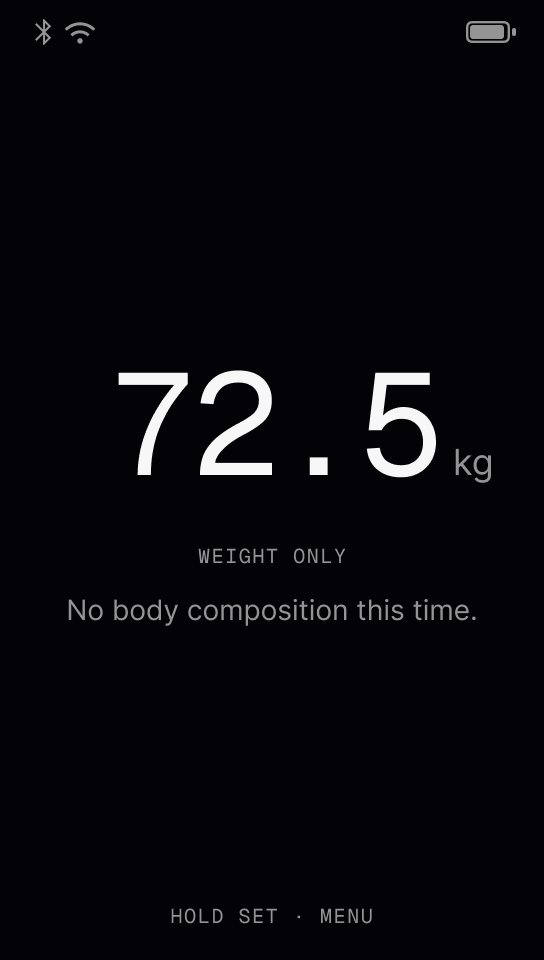
3.1 · WEIGHT ONLY
Handle not lifted within 10 s, or the scan failed for 20 s.
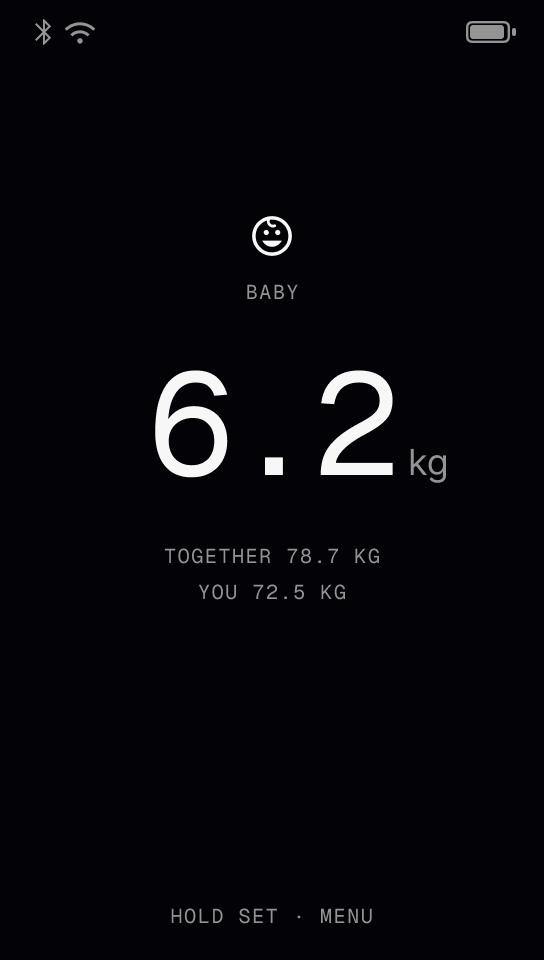
3.2 · BABY WEIGHT
Weigh yourself, then step on holding the baby.
Profiles · add
04 · 11 SCREENS
Hold SET for 3 s from the weight screen. The scale can't type a name, so a new profile gets a number and a colour, and its name is added in the app. The bar is the menu's 30 s countdown.
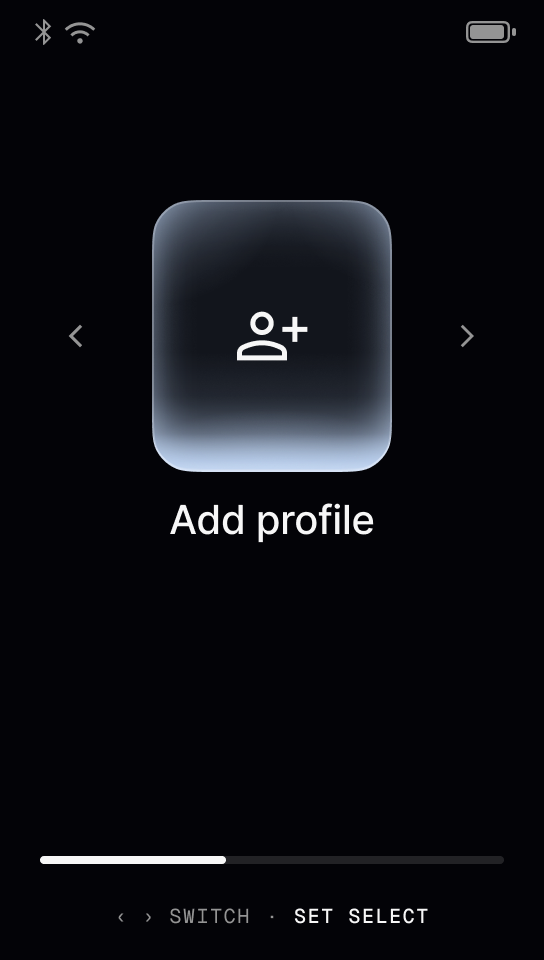
4.1 · MENU · ADD
Hold SET 3 s from the weight. The menu closes after 30 s.
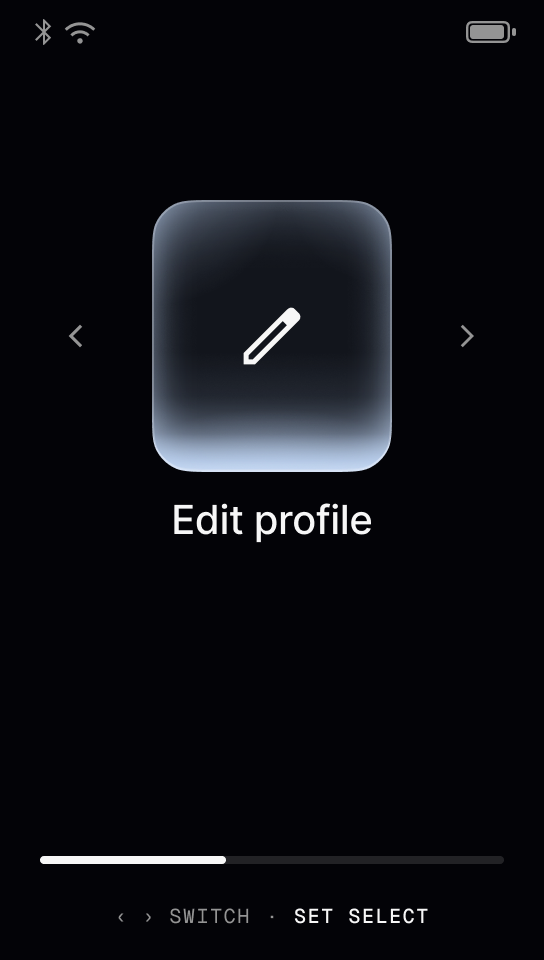
4.2 · MENU · EDIT
‹ › between add and edit.
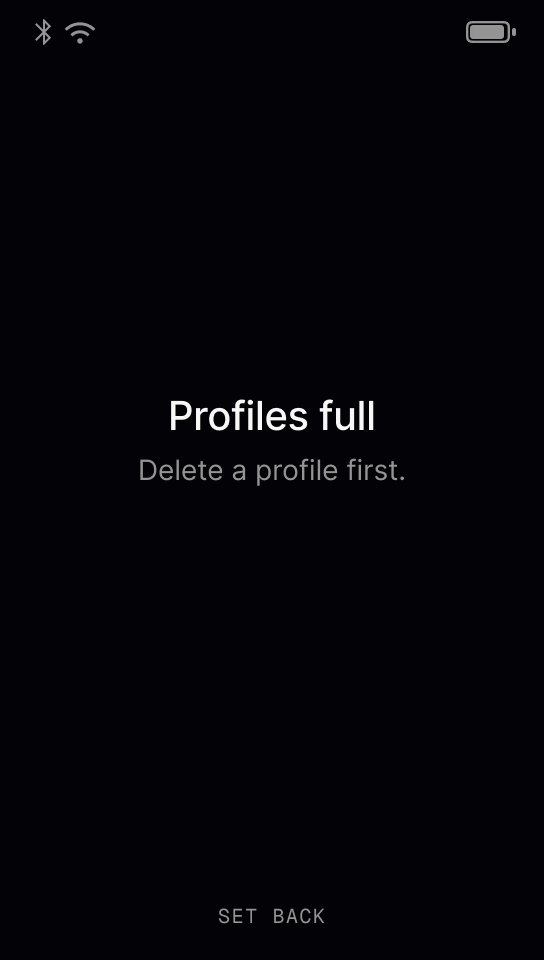
4.3 · PROFILES FULL
Add with no free slot. SET or 3 s returns.
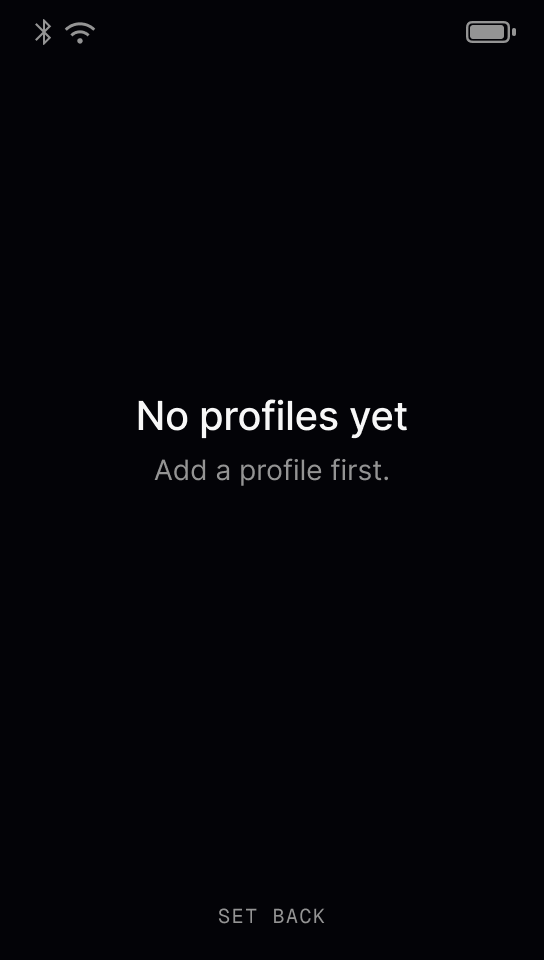
4.4 · NO PROFILES
Edit with no profiles. SET or 3 s returns.
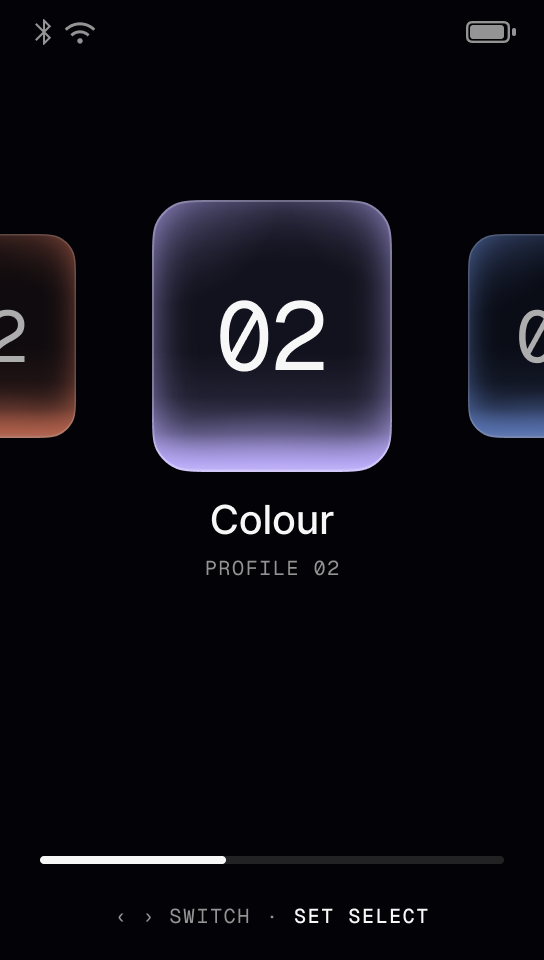
4.5 · COLOUR
Pick the profile colour, the same one the app uses.
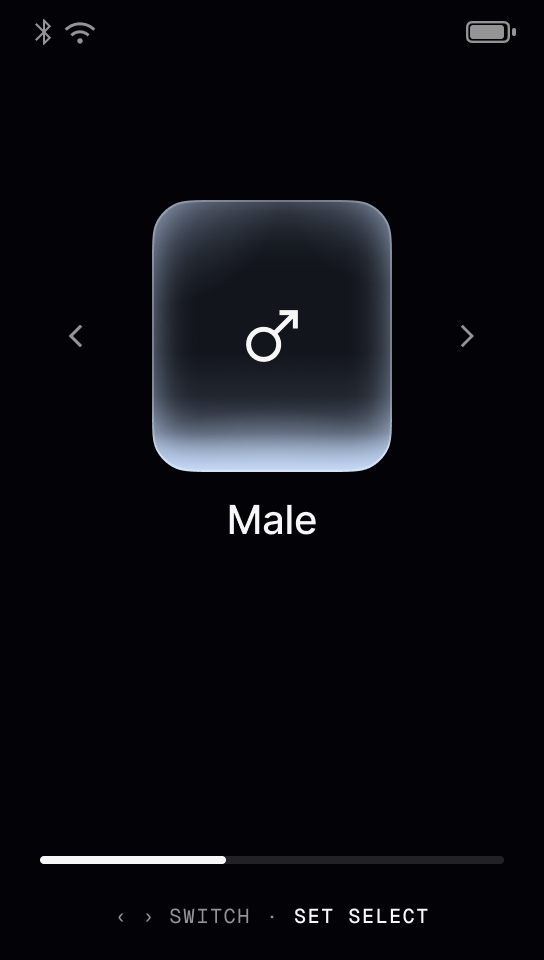
4.6 · SEX · MALE
‹ › male or female.
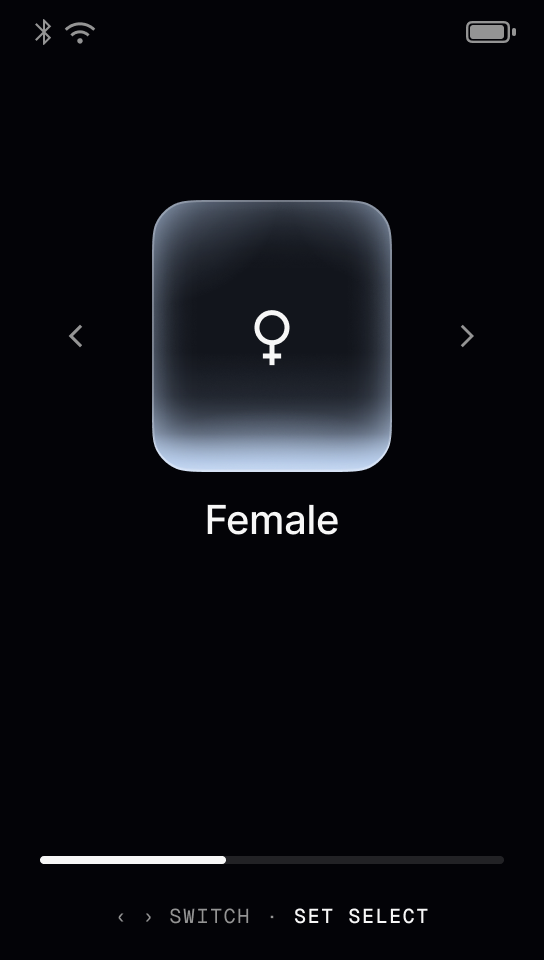
4.7 · SEX · FEMALE
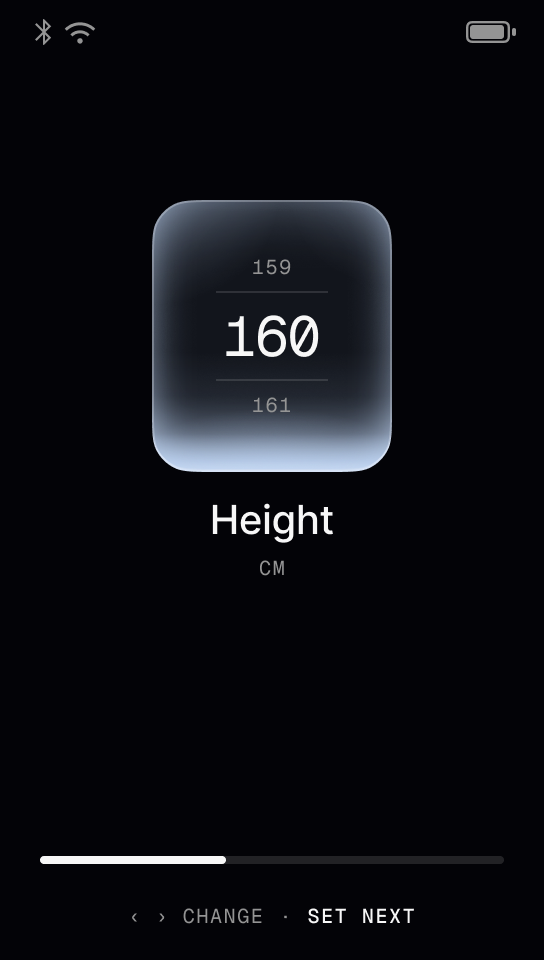
4.8 · HEIGHT · CM
Starts at 160 cm. ‹ › change, SET next.
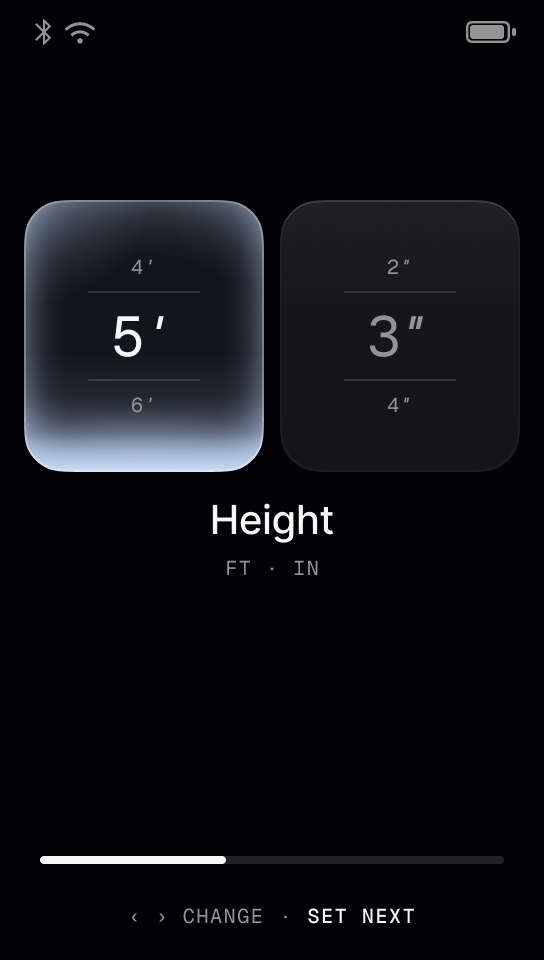
4.9 · HEIGHT · FT IN
Imperial. SET moves from feet to inches.
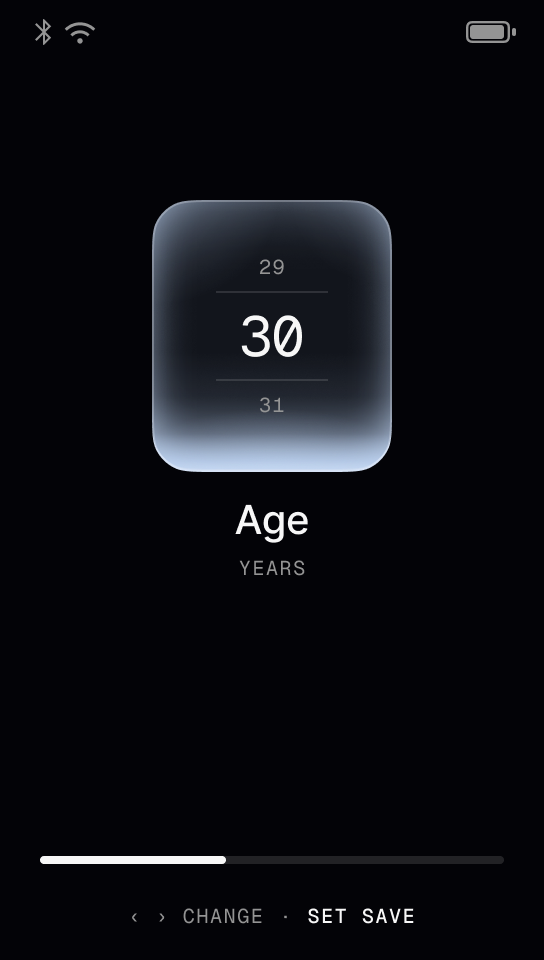
4.10 · AGE
Starts at 30. SET saves.
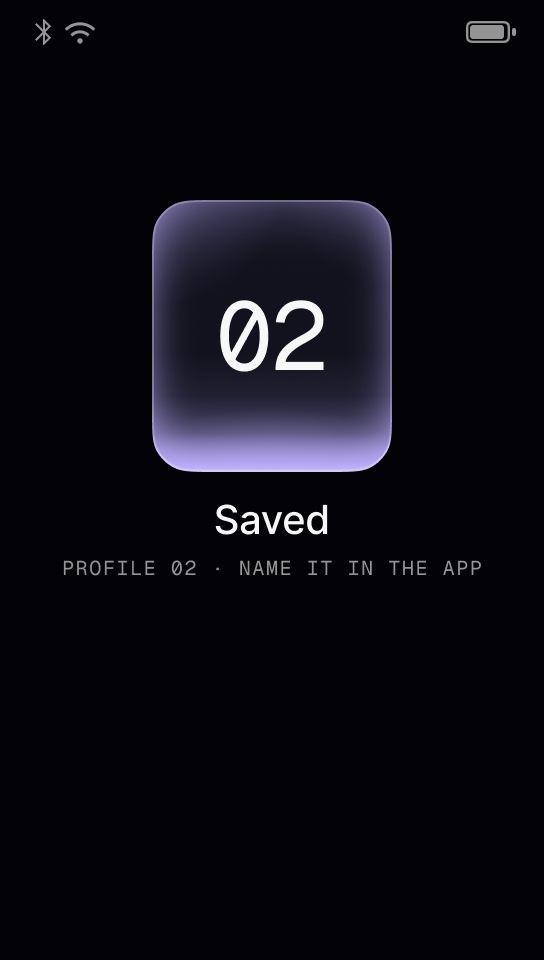
4.11 · SAVED
Saved under the next free number; name it in the app. 2 s, then the weight.
Profiles · edit and delete
05 · 5 SCREENS
Edit uses the same steps as adding a profile, already filled in. Delete asks first, with Cancel selected.
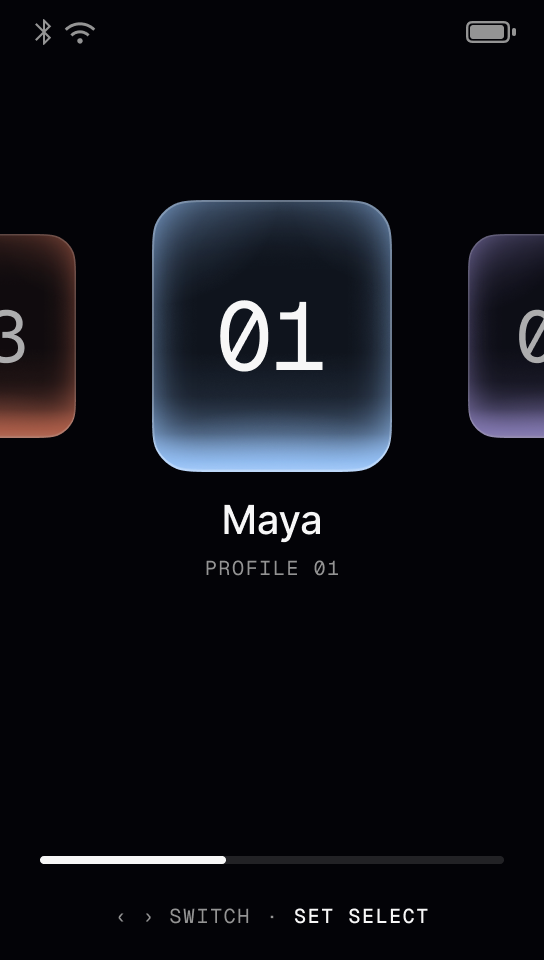
5.1 · CHOOSE PROFILE
‹ › choose which profile.
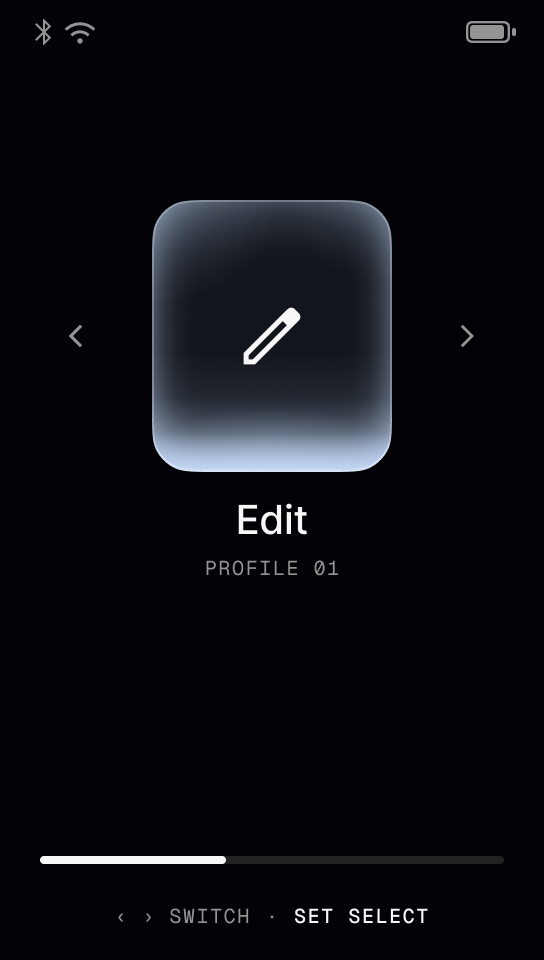
5.2 · EDIT
Runs steps 4.5 to 4.10, filled in.
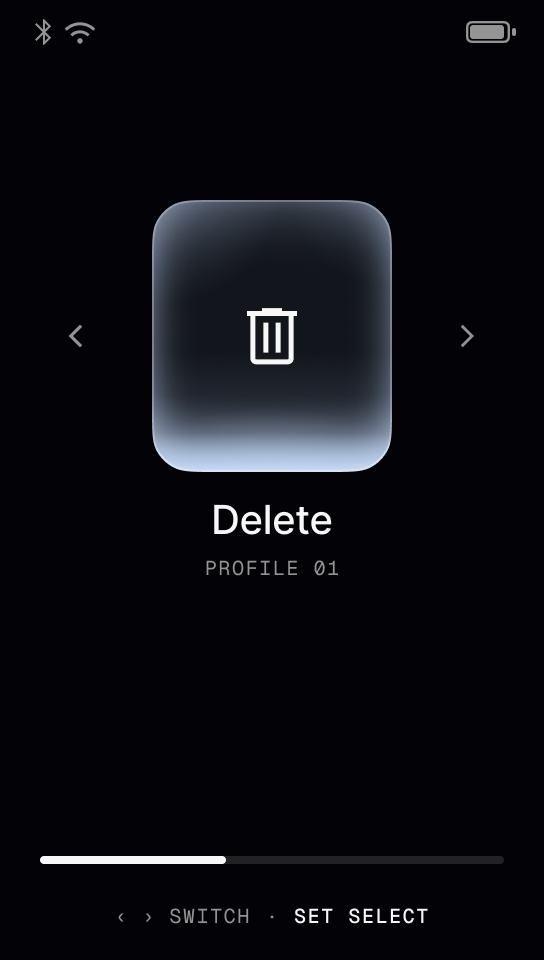
5.3 · DELETE
‹ › between edit and delete.
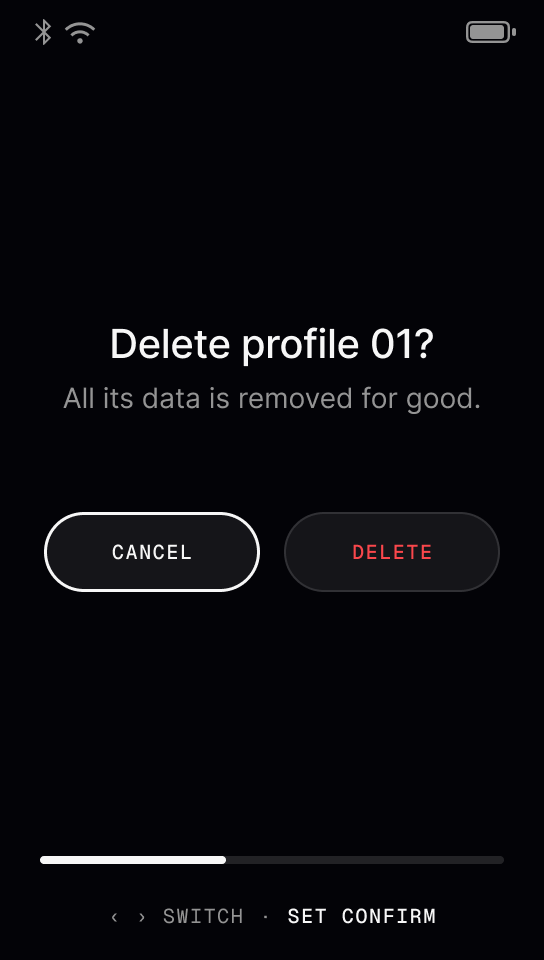
5.4 · CONFIRM DELETE
Cancel is selected first. ‹ › moves, SET confirms.
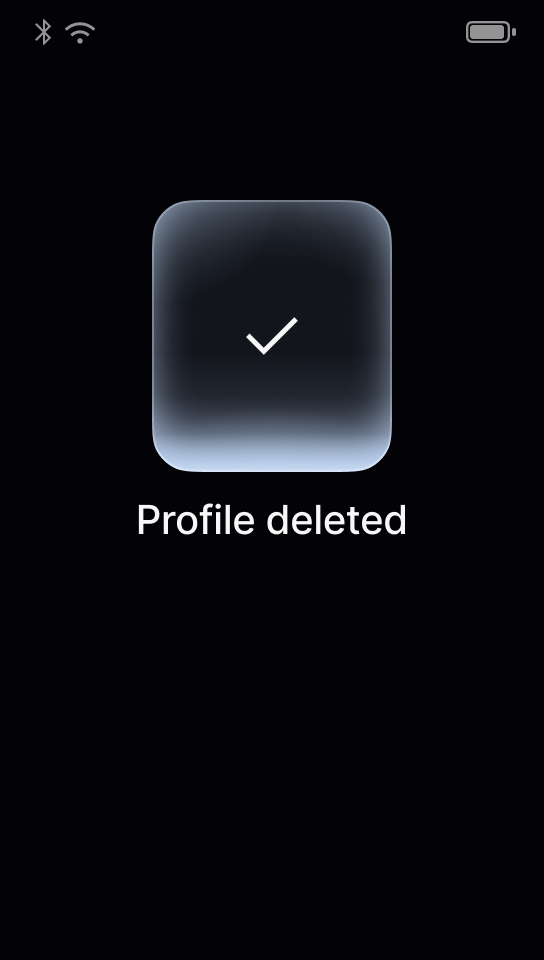
5.5 · DELETED
2 s, then the weight. The profile list refreshes.
Connection, power and updates
06 · 12 SCREENS
Wi-Fi setup, battery, overload and firmware updates. Green and red only ever mark success and failure, always with a check, a cross or a bolt beside them.
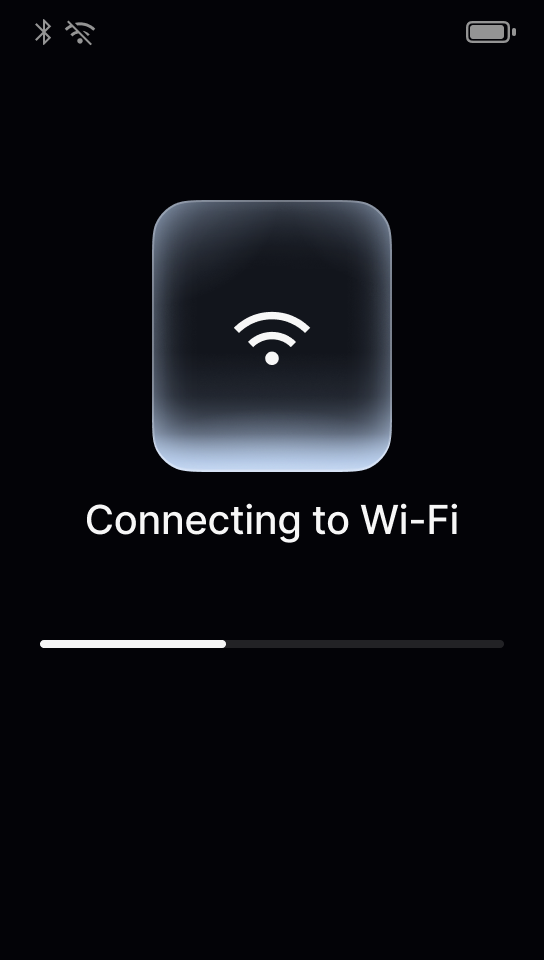
6.1 · WI-FI CONNECTING
Set up from the app.
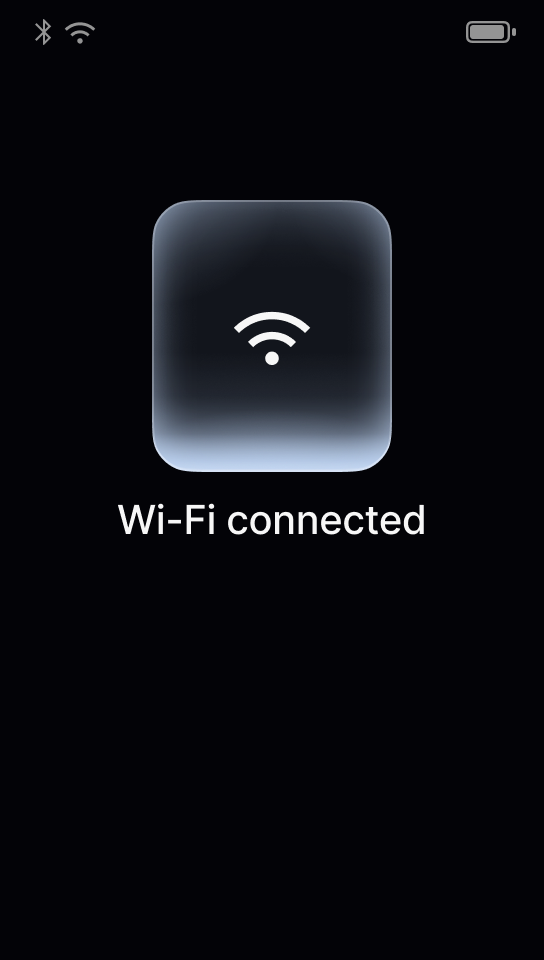
6.2 · WI-FI CONNECTED
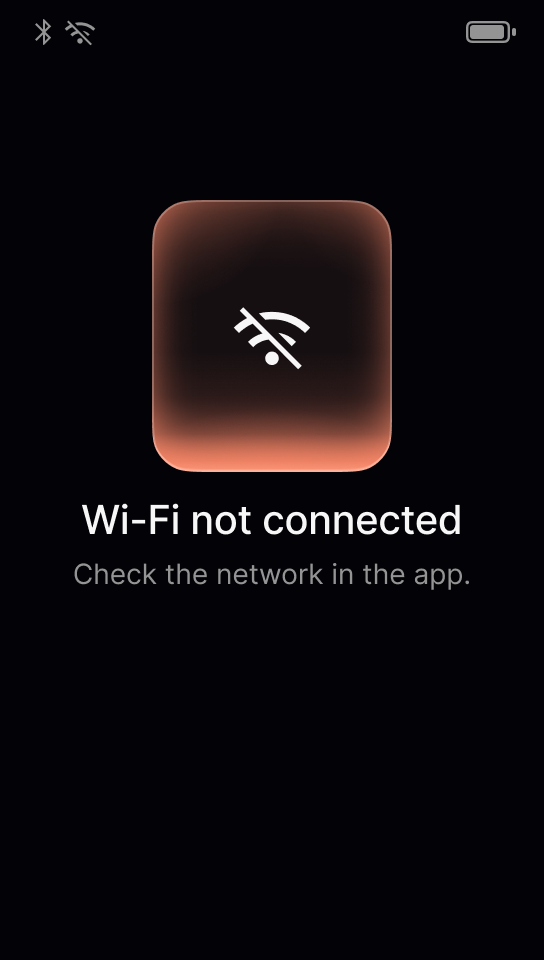
6.3 · WI-FI FAILED
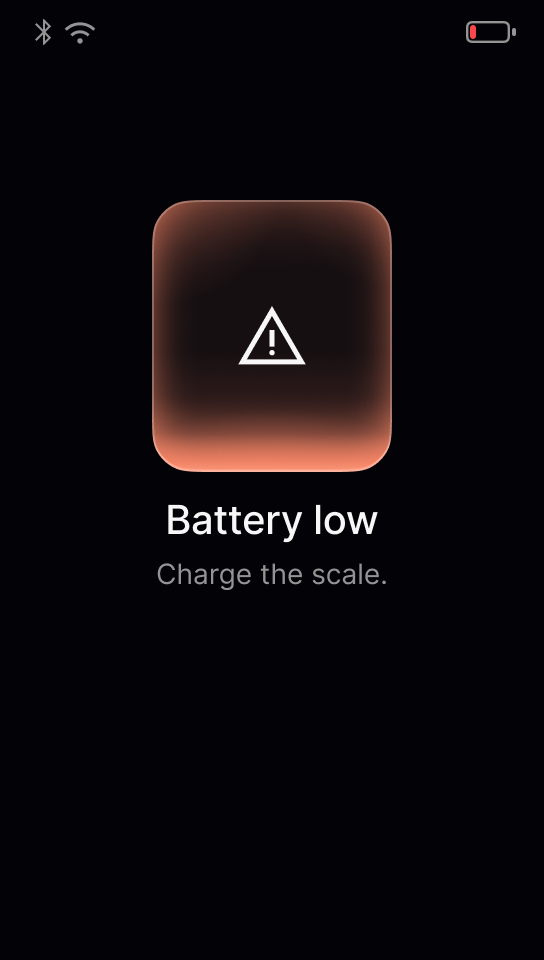
6.4 · BATTERY LOW
3 s, then the scale sleeps.
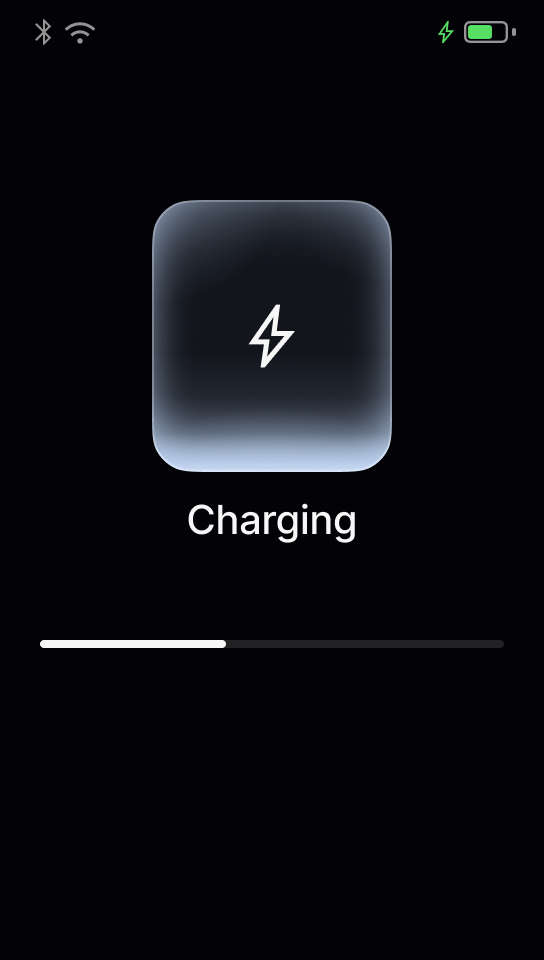
6.5 · CHARGING
The ring and the status-bar battery follow the charge.
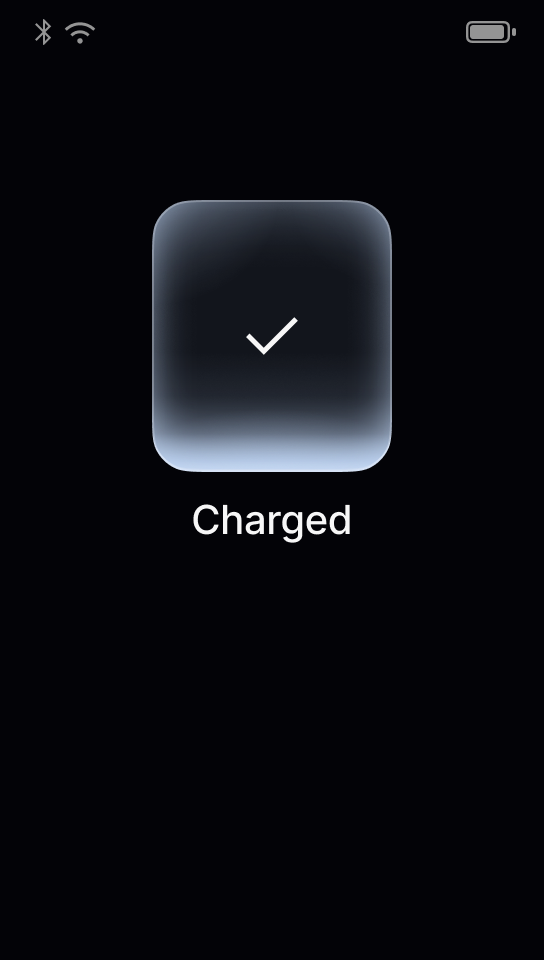
6.6 · CHARGED
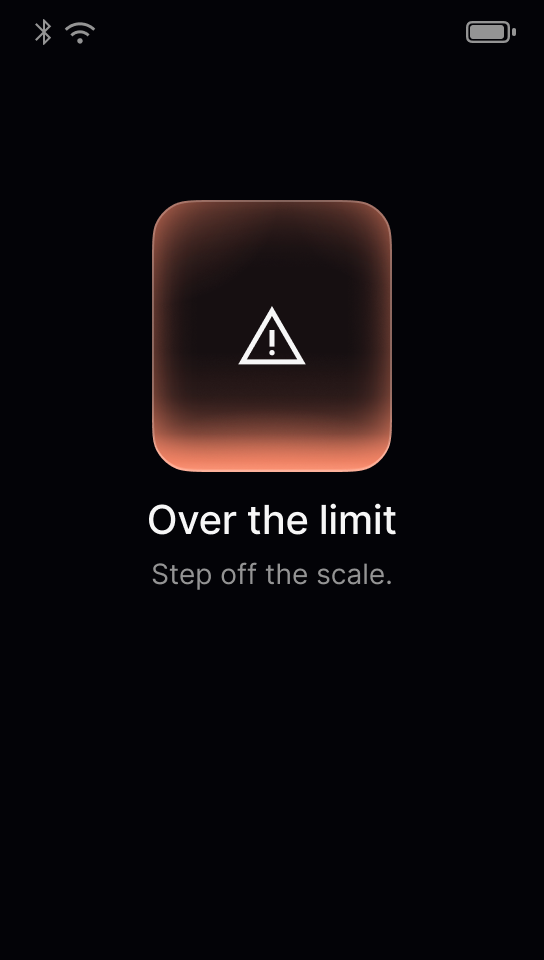
6.7 · OVERLOAD
Over the weight limit. 3 s, then the scale sleeps.
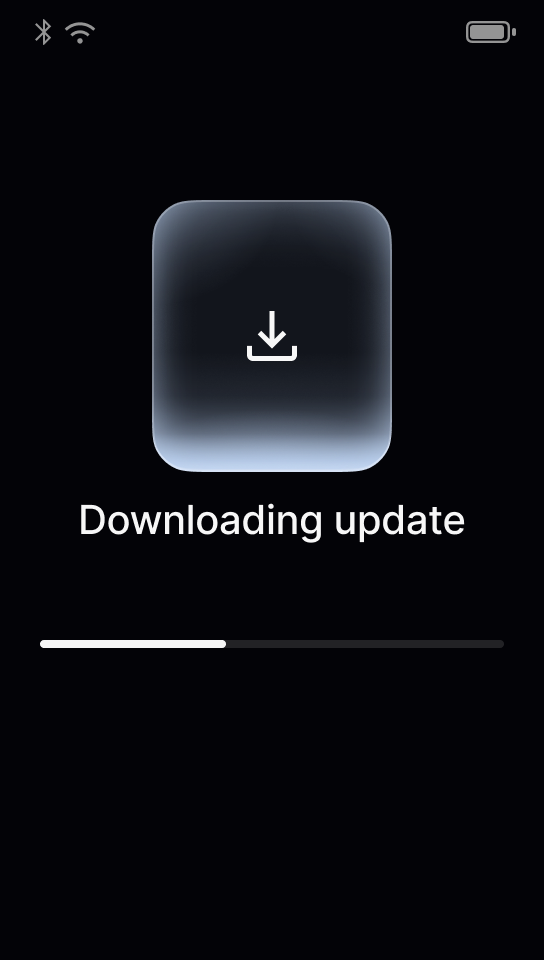
6.8 · DOWNLOADING
Firmware update started from the app.
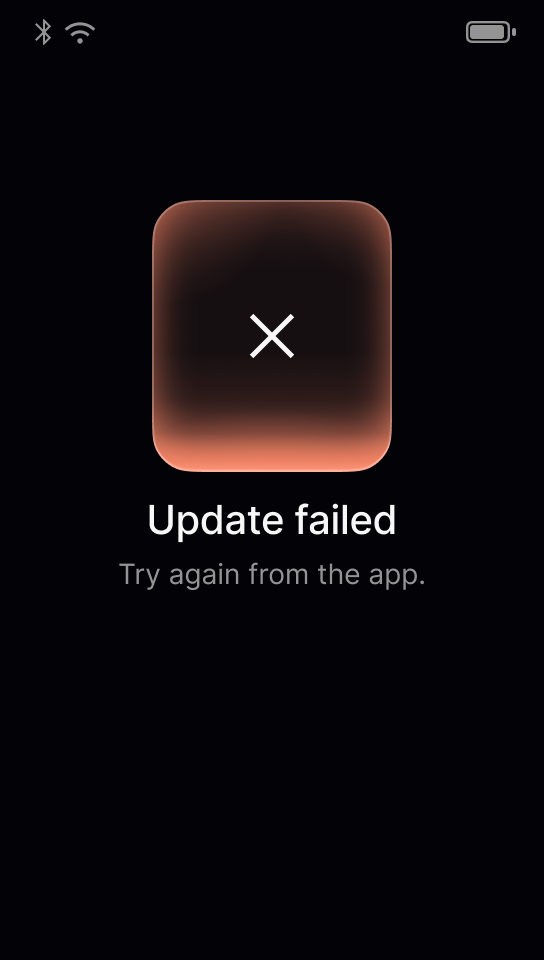
6.9 · DOWNLOAD FAILED
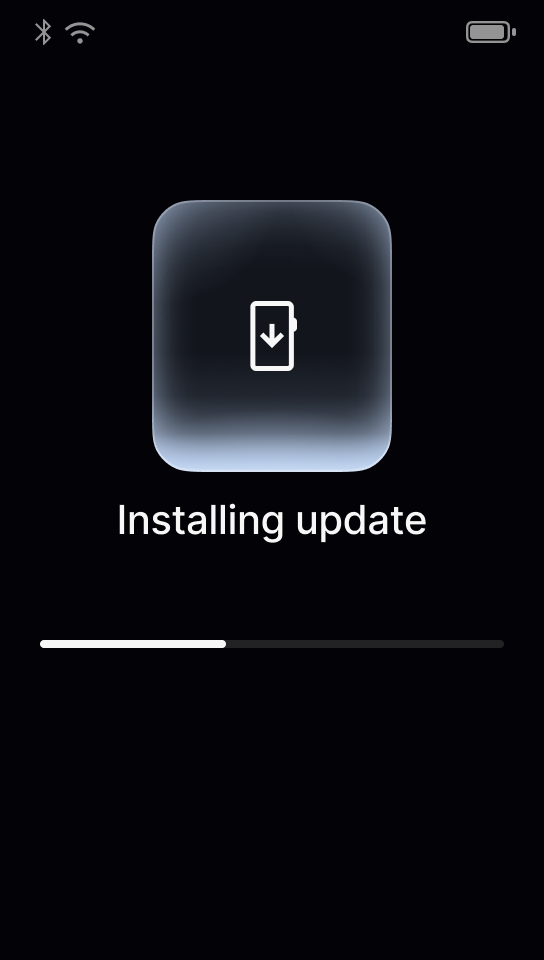
6.10 · INSTALLING
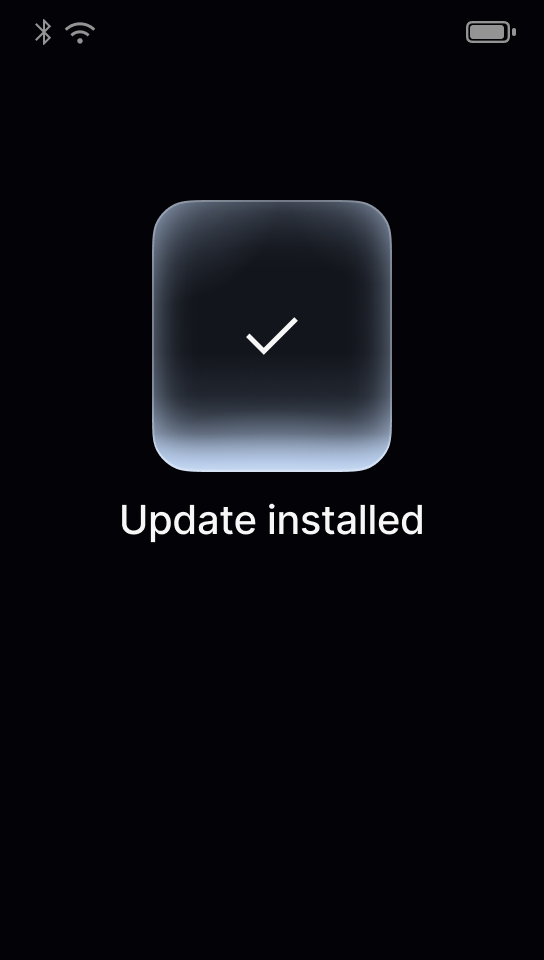
6.11 · INSTALLED
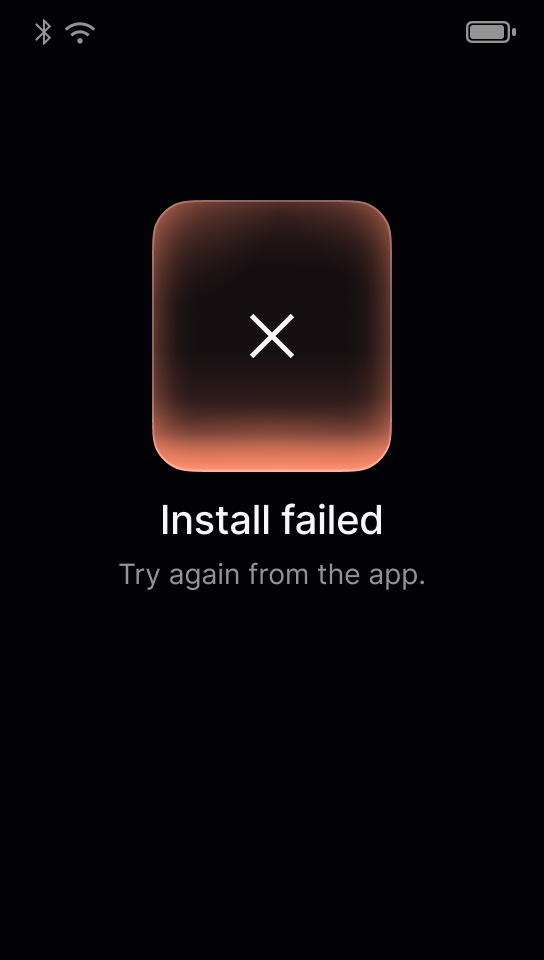
6.12 · INSTALL FAILED
Still open
WORK IN PROGRESS
- The indicator set waits on confirmation from the scale's firmware.
- Range-bar thresholds, the profile count and the weight limit are not yet sourced, so no screen states them.
- How the scale enters baby mode is still to be defined.
- The code version of these screens comes next.